
Nothing to install on devices
The computer serves a small web page. Any modern browser sends files from it: Safari on iPhone and iPad, Chrome on Android, a browser on another laptop.
Start Drop on the computer, scan the QR code with the phone and pick the files. Photos, videos and documents of any size go straight over your Wi-Fi into the Downloads folder — no app on the phone, no account, no internet.
Version 0.1 for Windows and Linux

The computer serves a small web page. Any modern browser sends files from it: Safari on iPhone and iPad, Chrome on Android, a browser on another laptop.
Files go in chunks, several at a time, so hours of video make it as well as a single document. Drop never recompresses anything.
Lost connections are retried on their own. If the page was closed, open the link again and pick the same files: they continue where they stopped.
The link carries a one-time secret that never travels over the network. Devices without the link can neither read the traffic nor send anything.
Every drop goes to a folder of its own in Downloads, Drop-YYYY-MM-DD-N. Files keep their names and modification times.
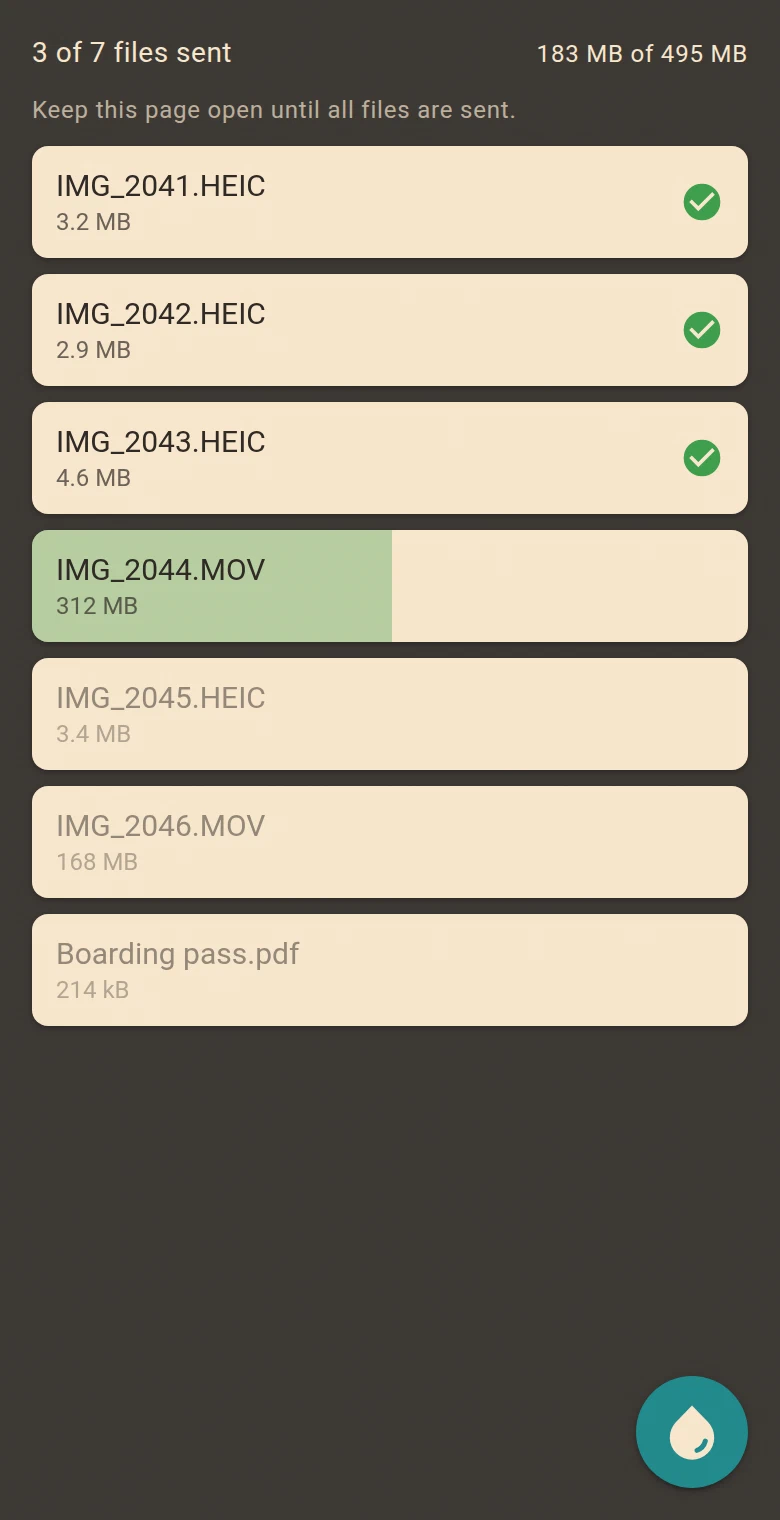
The page and the window show every file as it goes, the window shows the time left and tells with a notification when the drop is complete.
Files travel only inside your local network. Nothing is uploaded anywhere, so it works without internet access and with no size limits but your disk.
The window and the page follow the language of the computer and of the phone.
Sending files to yourself through a messenger or a cloud drive works for a photo or two. With a few hundred photos or long videos it turns into waiting, limits and lost quality.
| Messenger or cloud | Drop | |
|---|---|---|
| Photo and video quality | Often compressed on the way | Sent as they are, never recompressed |
| Large videos | File size and storage limits | No limits but the free disk space |
| Speed | Up to the internet and back down | As fast as your Wi-Fi |
| Internet access | Required | Not needed, the local network is enough |
| Where the files go | Through someone else’s servers | Straight to your computer, encrypted |
| On the computer | Download and sort out by hand | Already in a dated folder in Downloads |
A cable works too, but needs the right cable at hand, and an iPhone also needs extra software on Windows.
Move a vacation or a family event to the computer in one go and free up space on the phone.
Gigabytes of 4K video go without compression and without waiting for an upload to the cloud.
Friends send their photos from their own phones: they only scan the QR code, nothing to install or sign up for.
Run Drop on the computer. If it is on several networks, choose the one the phone is on.
Press Show QR and scan it with the phone camera. Devices without a camera get the link through Copy Link.
Tap the drop button on the page and pick photos, videos or other files. They appear in the Downloads folder as they come.
Version 0.1. Free, open source, no accounts or subscriptions.
Windows 10 and 11, 64-bit. The installer allows Drop in Windows Firewall on private networks.
Installer (.exe)Ubuntu 22.04+, Debian 12+ and compatible distributions.
Package (.deb)Fedora 39+, RHEL 9+, AlmaLinux 9+ and compatible distributions.
Package (.rpm)Install Drop only on the computer that receives files. Devices that send them need nothing but a modern browser and the same local network.
Every release includes a SHA256SUMS file to check that the download wasn’t altered. All releases and changes →
No. The phone opens a web page served by Drop on the computer, the camera app opens it from the QR code. Any modern browser works.
No. The phone and the computer only have to be on the same local network, for example on the same Wi-Fi router. Nothing goes through the internet.
Everything the page and the computer send each other is encrypted and authenticated with keys made from a one-time secret in the link, which browsers never send over the network. The page itself still comes over HTTP, so use Drop on networks you trust, such as your home Wi-Fi.
Most often the phone is on another network: a guest Wi-Fi, mobile data or a VPN. On Windows, the home network also has to be marked as private in the network settings, as the firewall lets Drop in only on private networks.
iOS converts photos and videos to the most compatible formats when they are picked in the browser, so they open on any computer. Some iOS versions let you choose originals in Options at the top of the photo picker.
On Android the page keeps the screen on while files are sent. iPhone and iPad lock the screen as usual: sending pauses after a while, unlock the phone and it continues by itself.
Yes. Every device that has the link can send files at the same time. Different files with the same name are saved side by side as name (2).
Yes. Drop is free and open source software under the GNU GPL v3 license, with no accounts, subscriptions or ads.
Not yet. Drop currently runs on Windows 10 / 11 and Linux. A Mac can send files to it from a browser, though.